How to Test Live Speech Translation
Hope Translator is a speech-first translator that excels with long speeches like sermons and event talks. The best way to experience its capabilities is by testing it with real content. This guide will walk you through testing Hope Translator using demo mode (recommended for quick testing) or your favorite YouTube videos.
Why Test with Real Content?
Hope Translator shines with long-form speech content. While it can handle conversations, its true power emerges with extended speeches like sermons, graduation addresses, conference presentations, and event talks. Testing with content you care about helps you understand the full potential of live translation technology.
Step-by-Step Testing Guide
Step 1: Choose Your Test Content
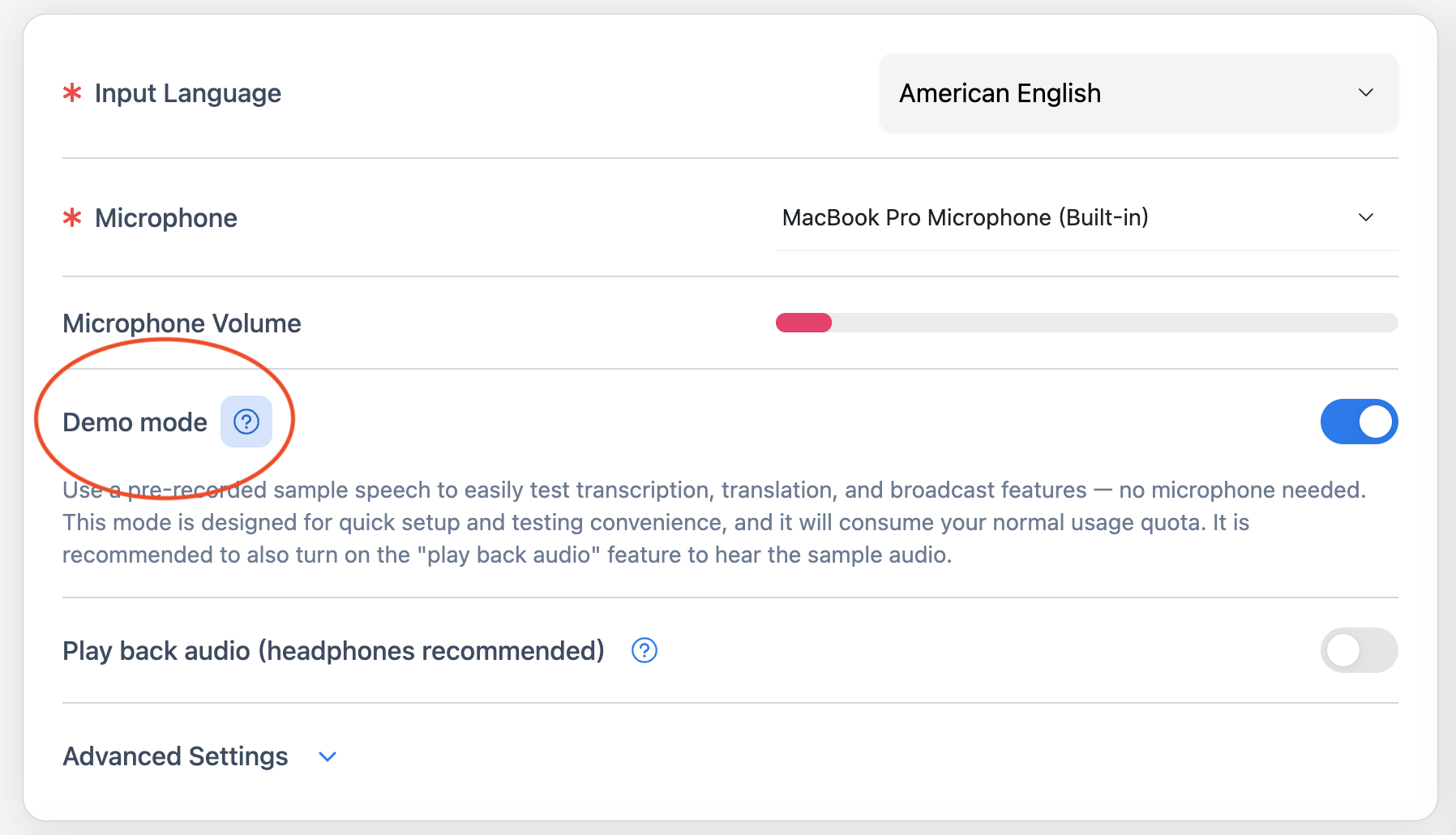
Recommended: Use Demo Mode - For quick testing without setting up external audio sources, use Hope Translator's demo mode. This feature uses a pre-recorded sample speech to easily test transcription, translation, and broadcast features — no microphone needed. Demo mode is designed for quick setup and testing convenience, and it will consume your normal usage quota. It's recommended to also turn on Hear your microphone to hear the sample audio.
Alternative: Use Your Own Content - If you prefer to test with your own content, pick a YouTube video that resonates with you:
- Sermons from your favorite preacher or pastor
- Graduation speeches from famous personalities
- Conference talks from industry leaders
Step 2: Start the Translation Session
Using Demo Mode (Recommended):
- Open the web console at hopetranslator.com
- Select your source language - Choose the language of the pre-recorded sample
- Enable demo mode - Activate the demo mode feature in the console
- Turn on Hear your microphone - Enable this feature to hear the sample audio as it plays
- Click "Start Translation" - The pre-recorded sample will begin automatically
Demo mode is perfect for quick testing when you don't have a microphone or external audio source ready. The pre-recorded sample will automatically play, allowing you to test transcription, translation, and broadcast features without any additional setup.
Step 3: Monitor Live Transcription
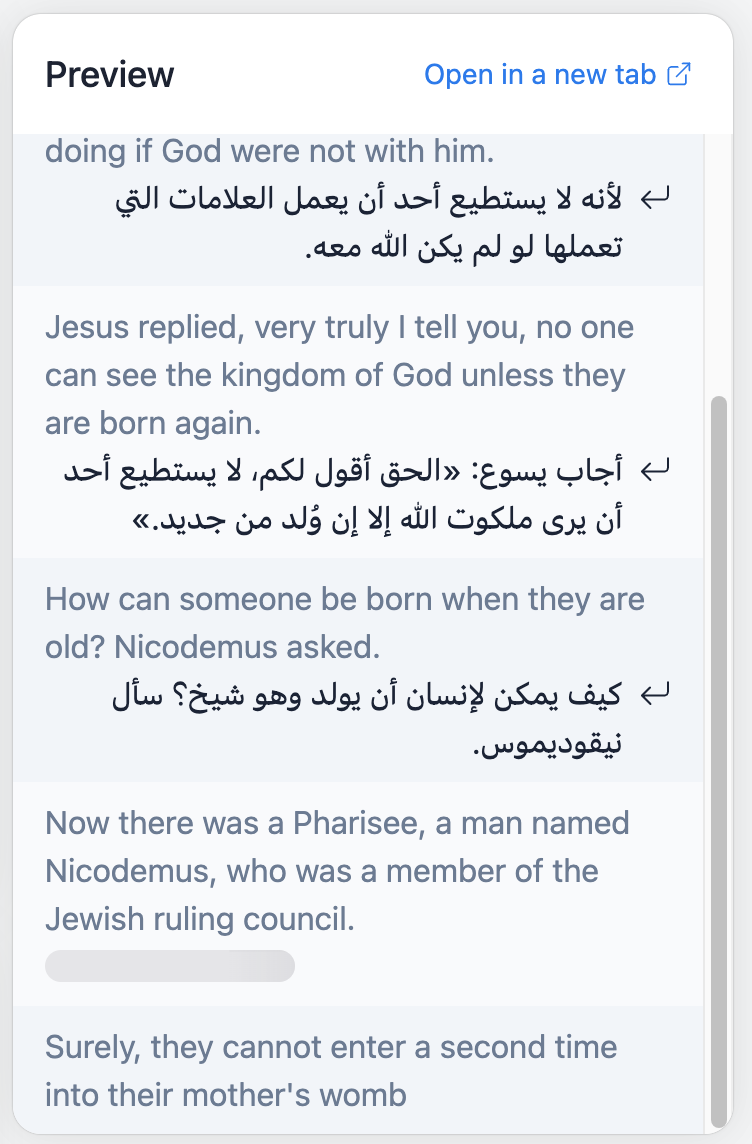
- Live transcription appears as the speaker talks
- Text updates continuously showing what the AI is hearing
- Accuracy indicators help you gauge transcription quality
- Real-time processing demonstrates the speed of AI translation
- Adjust the sound settings as needed
This is where you'll see Hope Translator's speech recognition capabilities in action. The transcription should appear almost instantly as the speaker talks.
Step 4: Connect Your Mobile Device
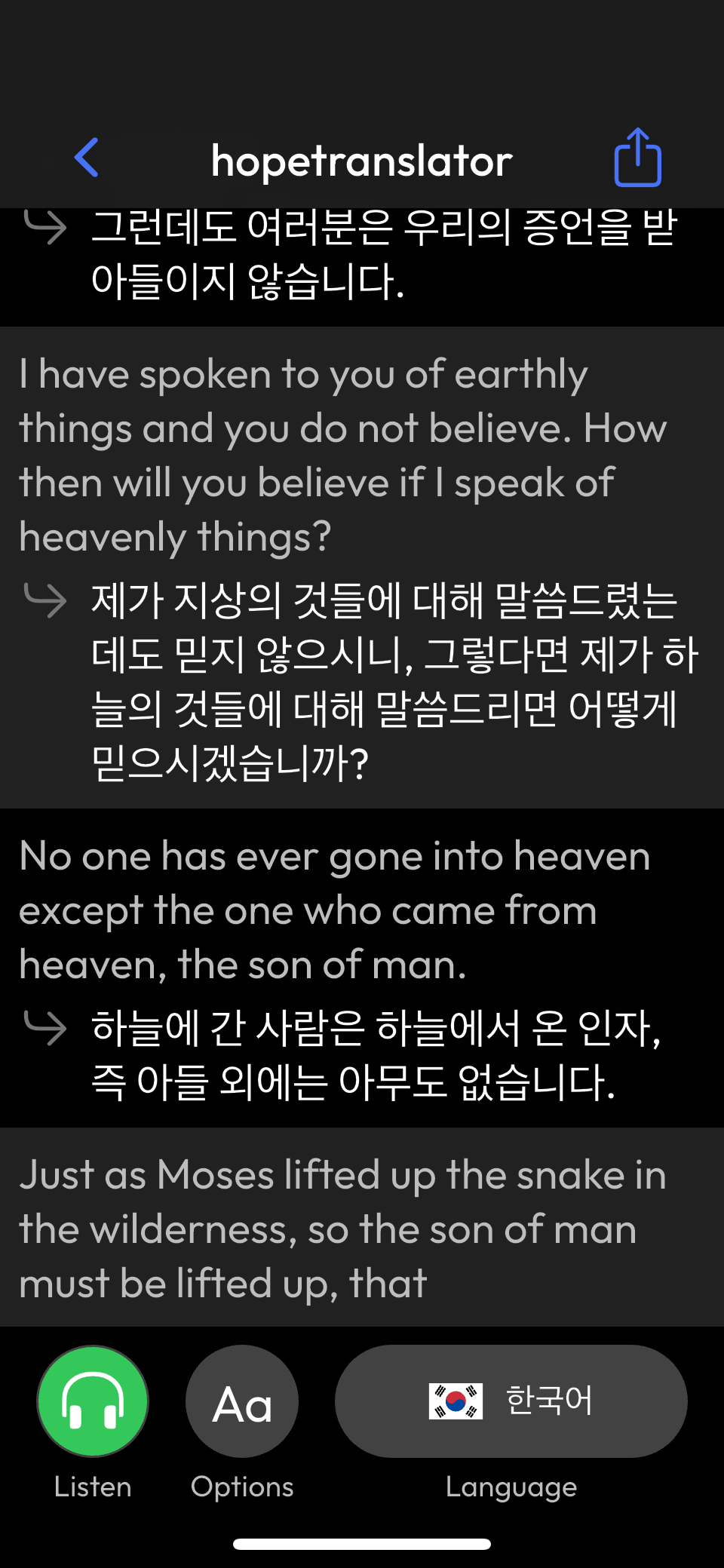
Watch the magic happen in real-time:
- Scan the QR code displayed on the web console
- Open the mobile app (download if needed hopetranslator.com/download)
- Select your target language - Choose the language you want to read/hear
- Watch the translation appear - See the original text being translated in real-time
Step 5: Experience AI Voice Reading
Take the experience to the next level:
- Click the "Listen" button in the mobile app
- Download the app if you haven't already from hopetranslator.com/download
- Hear the AI voice reading the translation to you
- Switch between languages to test different target languages
This is where Hope Translator truly shines - you're not just reading translations, you're hearing them spoken by AI voices in real-time.
Step 6: Test the Presentation Screen Feature
Experience professional screen overlay capabilities:
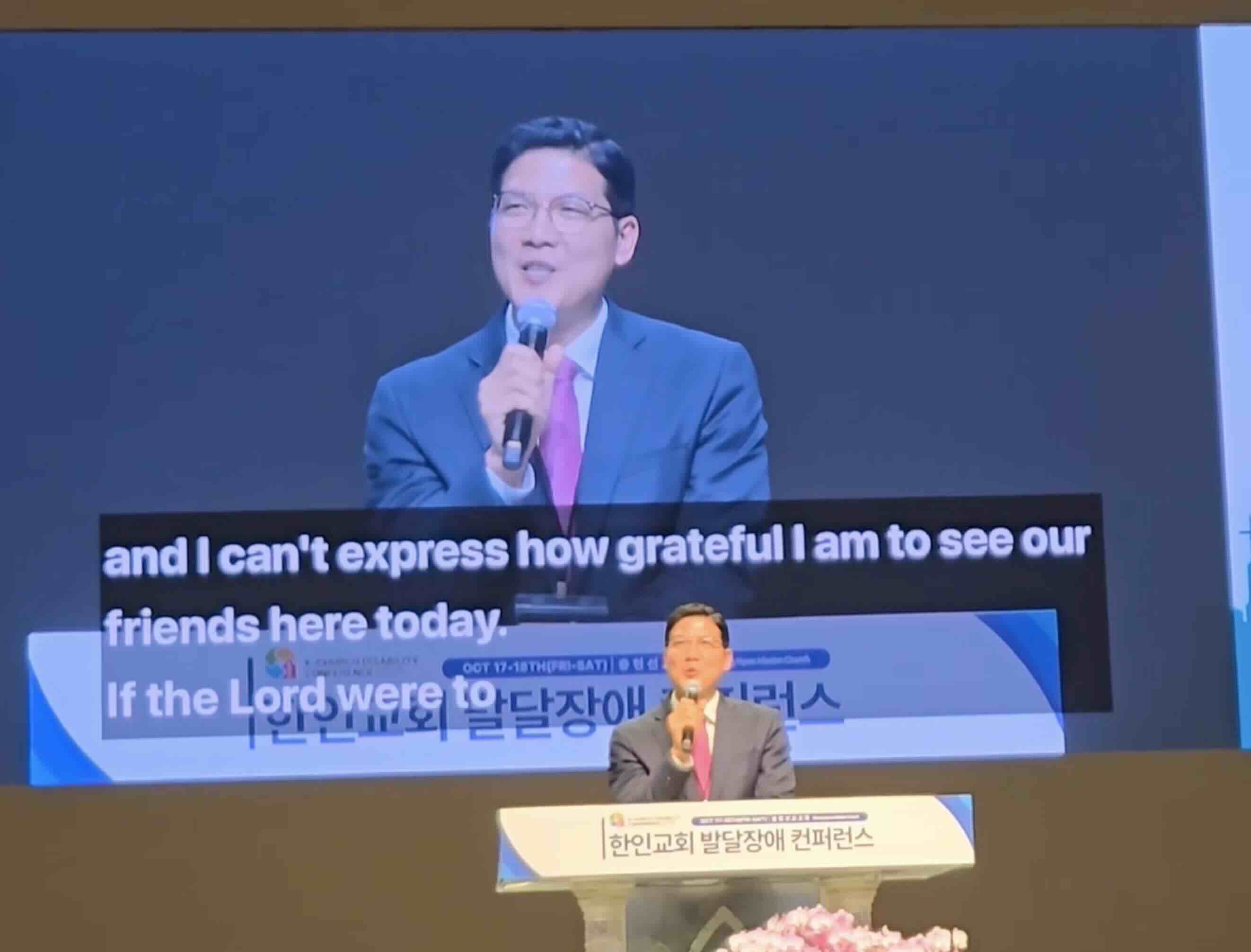
- Click "Add Screen" in the web console to create a screen overlay
- Enter a descriptive name for your screen (e.g., "Main Service Translation")
- Configure display settings - Adjust font size, colors, and positioning
- Select target language and copy the generated overlay link
- Test with presentation software or a browser - Add the link to ProPresenter, OBS, or other software or open the copied url in a browser
- View the overlay - See live translation appear directly on your presentation screen or in your browser
This feature is perfect for:
- Church services - Display translation on the main screen during sermons
- Live streaming - Add translation overlays to your broadcasts
- Corporate presentations - Show real-time translation to international audiences
- Educational content - Make lectures accessible to multilingual students
Pro Tip: Test the screen overlay with your actual presentation software to ensure compatibility and optimal positioning. The translation will appear as a professional overlay that doesn't interfere with your main content.
Advanced Testing Features
Sound Input Optimization
For the best results, ensure excellent audio quality:
- Use headphones to hear the original audio clearly
- Consider external microphones for professional testing
- Monitor audio levels to prevent distortion
Important: Refer to our comprehensive guide on How to Get Accurate Transcription and Translation for detailed audio setup instructions.
Experiment with AI Voices
Try different voice options:
- Male and female voices for different preferences
- Various accents to match your target audience
- Voice quality settings for optimal clarity
Test Different Sound Input Options
Explore various audio sources:
- Built-in microphone for basic testing
- External USB microphone for better quality
- Wireless microphone systems for professional setups
- Audio interface connections for studio-quality input
Recommended Reading: For detailed wireless microphone recommendations and reviews, check out our comprehensive guide: Top 5 Wireless Microphones for Live Translation.
What to Look For During Testing
Transcription Quality Indicators
Good transcription shows:
- Real-time accuracy - Text appears as the speaker talks
- Proper punctuation - Commas, periods, and question marks
- Speaker identification - When multiple people are speaking
- Technical terms - Proper handling of specialized vocabulary
Translation Quality Indicators
Excellent translation demonstrates:
- Natural language flow - Reads like human translation
- Context preservation - Maintains meaning and intent
- Cultural adaptation - Appropriate for target audience
- Technical accuracy - Correct handling of specialized terms
Real-Time Performance
Optimal performance includes:
- Low latency - Translation appears within seconds
- Consistent processing - No gaps or delays
- Stable connection - No interruptions or dropouts
- Smooth playback - AI voice reads without stuttering
Troubleshooting Common Issues
Poor Transcription Quality
If transcription is inaccurate:
- Check audio quality - Ensure clear, loud audio input
- Reduce background noise - Use headphones or quiet environment
- Verify internet connection - Stable connection is essential
- Test with different content - Some speakers are easier to transcribe
Translation Delays
If translations are slow:
- Check internet speed - Ensure fast, stable connection
- Close other applications - Free up system resources
- Restart the session - Sometimes a fresh start helps
- Try different target languages - Some languages process faster
Mobile App Issues
If mobile connection fails:
- Ensure same WiFi network - Both devices must be connected
- Check QR code clarity - Ensure clear, well-lit scan
- Update mobile app - Use the latest version
- Restart both devices - Sometimes a restart resolves issues
Professional Testing Scenarios
Church and Religious Content
Test with sermons and religious talks:
- Biblical references - How well are scrip ture quotes handled?
- Religious terminology - Proper translation of theological terms
- Emotional content - Maintaining speaker's tone and passion
- Cultural context - Appropriate adaptation for different cultures
Educational Content
Test with academic presentations:
- Technical vocabulary - Handling of specialized terms
- Complex concepts - Translation of abstract ideas
- Academic tone - Maintaining formal language style
- Reference materials - Proper handling of citations and sources
Business and Professional Content
Test with corporate presentations:
- Industry jargon - Translation of business terminology
- Professional tone - Maintaining formal communication style
- Data and statistics - Accurate handling of numerical information
- Cultural sensitivity - Appropriate adaptation for global audiences
Congratulations - You're Now a Translation Technician!
You've mastered the complete Hope Translator workflow:
✅ Web console setup - Starting translation sessions
✅ Real-time monitoring - Watching live transcription
✅ Mobile integration - Connecting devices seamlessly
✅ AI voice experience - Hearing translations spoken aloud
✅ Screen overlay testing - Professional presentation integration
✅ Advanced features - Exploring professional capabilities
Next Steps
Ready to use Hope Translator in real scenarios?
- Set up for live events - Prepare for actual translation needs
- Train your team - Share these testing techniques with others
- Explore professional features - Unlock advanced capabilities
- Join the community - Connect with other Hope Translator users
Summary
Testing Hope Translator with your favorite content is the best way to understand its capabilities. By following this guide, you've learned how to:
- Choose appropriate test content for meaningful evaluation
- Set up translation sessions using the web console
- Monitor real-time transcription for accuracy assessment
- Connect mobile devices for the complete experience
- Experience AI voice reading for immersive translation
- Test screen overlay features for professional presentations
- Explore advanced features for professional use
Ready to test Hope Translator with your favorite content? Visit hopetranslator.com to start your first translation session and experience the future of live speech translation!