How to Listen to Live Translation
Listening to live translation with Hope Translator means you hear a natural AI voice in your language while someone speaks in another—during a sermon, meeting, conference, class, or event. You can also read live captions on screen. No account and no download are required if you join in a browser.
This guide is the full listener walkthrough: join with a QR code or link, pick a language, tap Listen, customize the view, use the optional mobile app, choose earbuds, and fix the issues people hit most often. You should not need another article to get from “I have a QR code” to “I hear translation.”
Practice with a demo broadcast on the web
If you do not have a live event running yet, start a demo broadcast in your browser first. On hopetranslator.com, turn on Demo mode, press play, and share the QR code or link with a second phone. Demo mode uses sample audio—no microphone setup—so you can join as a listener and try Listen end to end in a couple of minutes. Full steps: How to Start a Demo Broadcast.
Quick path: Scan QR → choose language → tap Listen → put in earbuds.
How Listening Works
- Someone hosts a broadcast and shares a QR code or link (same for the channel every time).
- You join by scanning the code or opening the link—usually on your phone.
- You choose your language (everyone can pick a different one).
- You read live text, or tap Listen for AI voice in your earbuds.
You do not need to pair with the host’s device. The link opens Hope Translator’s viewer; audio plays on your phone.
What You Need
- A phone, tablet, or laptop with internet (Wi‑Fi or mobile data)
- The host’s QR code or join link
- Optional but recommended: earbuds or headphones (wired or wireless)
- Optional: the free Hope Translator app for iOS or Android
Listeners do not need a Hope Translator account. Only the person running the broadcast needs one.
Step 1: Join the Broadcast
Join on the web (no download)
- Point your phone camera at the QR code on a slide, screen, or printed sign.
- Tap the notification or link that appears (iPhone and Android cameras both read QR codes—no separate scanner app).
- Or open the link someone sent you by text, email, chat, or website.
- The Hope Translator viewer opens in your browser. If the host has not started yet, you may see Waiting for host…—stay on the page; you connect when they start.
Tip: Stay on Wi‑Fi when you can. Cellular works, but a weak signal can interrupt audio.
Join in the mobile app (optional)
Use the app if you join the same channel every week, or prefer a dedicated app experience.
- Install Hope Translator from /download (iOS or Android).
- Open the app and go to join / scan.
- Tap Scan a QR code, or use Join with channel code if you have a short code.
- After you join once, the app can remember the channel so reconnection is faster next time.
Step 2: Choose Your Language
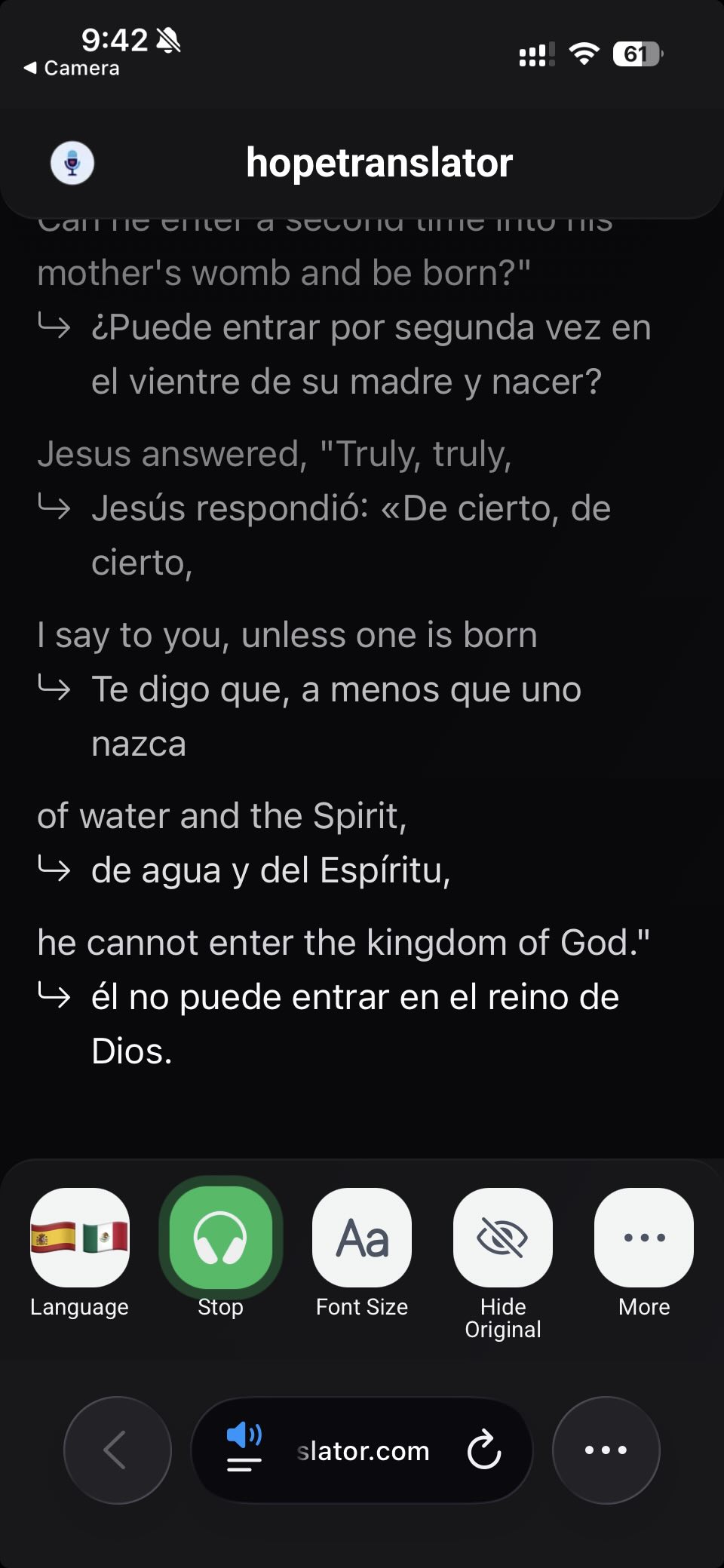
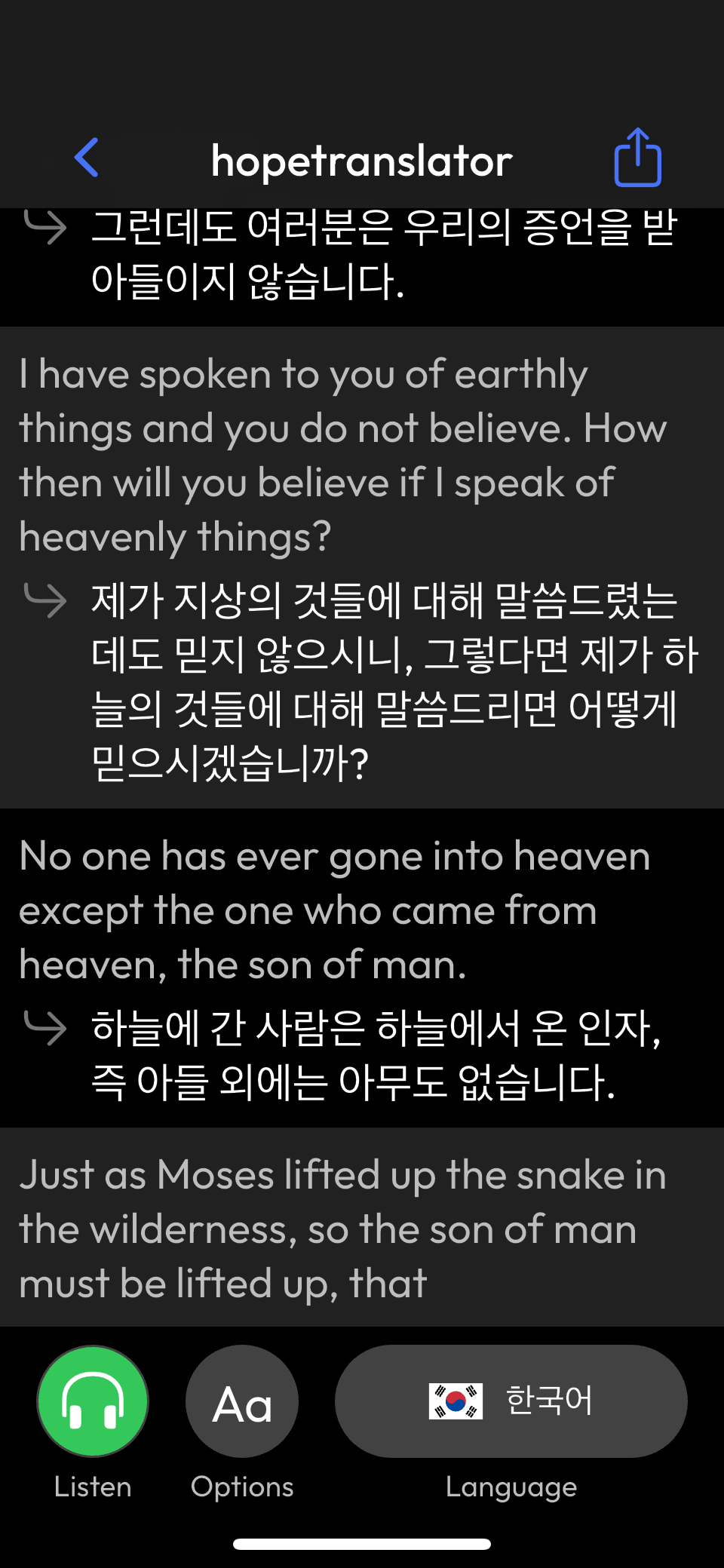
- Tap the Language control (flag icons or language name) at the bottom of the viewer.
- Select the language you want to hear and read.
- Live translated text updates to that language as the speaker talks.
Everyone sharing the same QR code can pick a different language. Nothing needs to be set by the host for you personally.
Step 3: Read Captions or Tap Listen
Read live translation
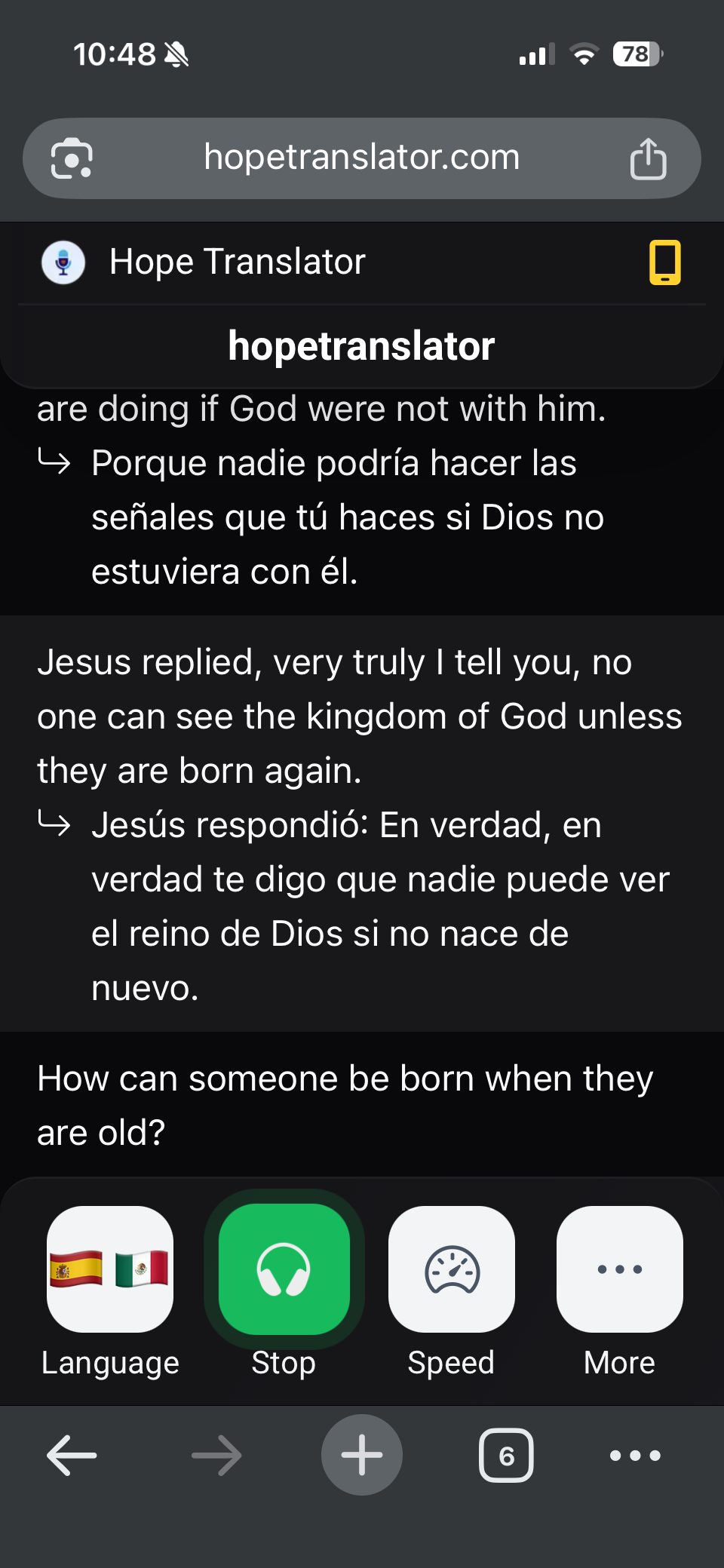
Once connected, translated text appears as the speaker talks. You can follow along silently without turning on audio.
Hear AI voice (Listen)
- Put in earbuds or headphones (recommended).
- Tap Listen (headphones / speaker control) in the footer.
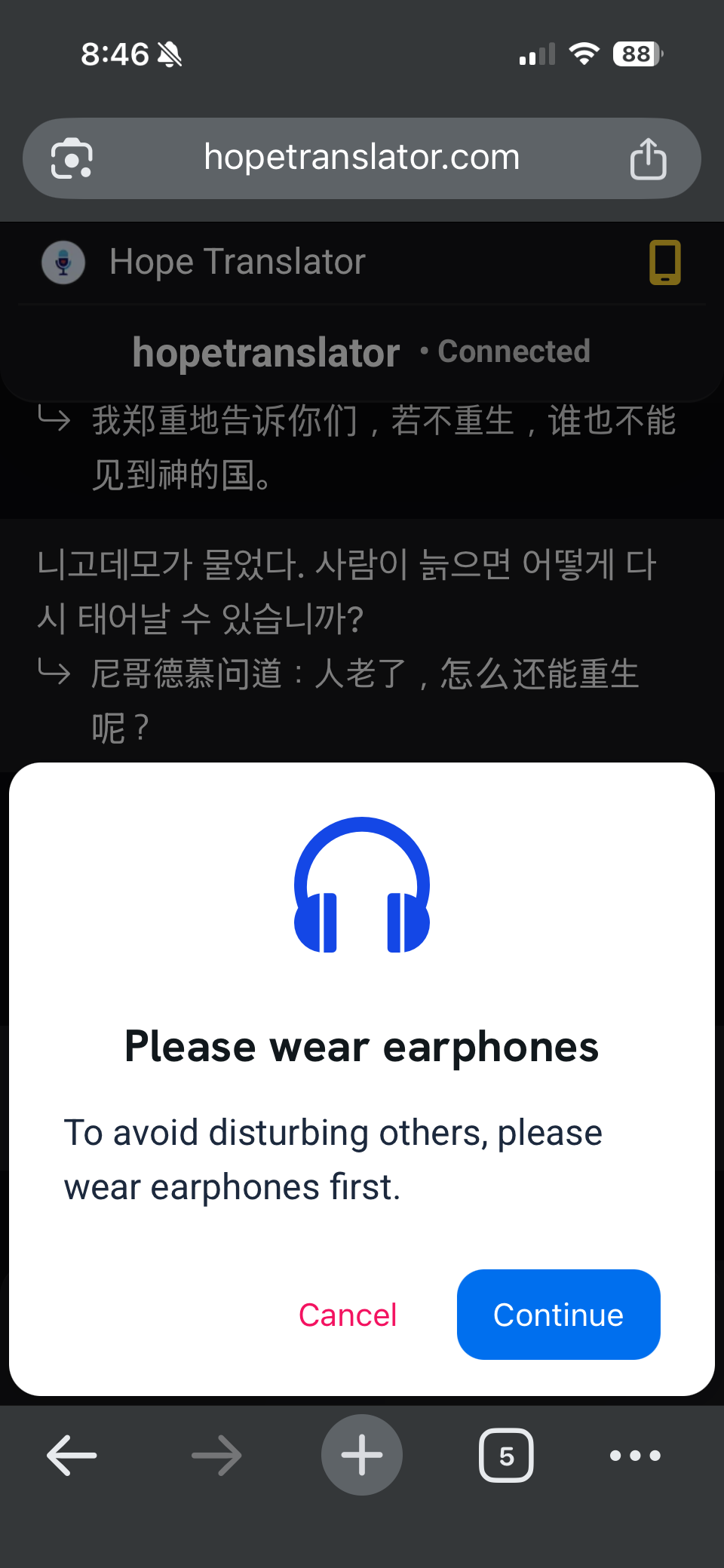
- If you see Please wear earphones, put them on and tap Continue.
- You should hear natural AI voice in your chosen language. The button may show Stop (often highlighted in green) while audio is on—tap it again to mute voice.
Voice listening works on both web and the mobile app. Captions and voice are independent: you can read without listening, or listen while still seeing text.
Step 4: Customize Your View (Optional)
These controls help during long services or meetings. Exact labels may sit under Options, Aa, or More (⋯), depending on web vs app.
| Control | What it does | | --- | --- | | Font size | Makes translated text larger or smaller | | Hide / show transcription | Hides the original language so you only see your translation | | Dark / light mode | Easier reading in a dark sanctuary or bright room | | Auto-hide header | Gives more space for text | | Speed | Adjusts how fast the AI voice plays (when available) | | Share | Shows a QR/link so neighbors can join the same broadcast |
Your font size preference is usually saved for the next time you join.
What to Wear for Clear Audio
You do not need special “translation headsets.” Any earbuds that work with your phone will play Hope Translator audio.
- Bring what you already own — wired or wireless is fine if paired and charged.
- Wired is simplest for loaners and first-time visitors (no pairing, no battery).
- One earbud is a common choice: translation in one ear, room and music in the other.
- Volume — turn phone volume up; if audio is quiet, check silent/mute switches and Bluetooth destination (phone speaker vs earbuds).
Churches and events often keep a small stock of inexpensive wired headsets at the welcome table. For a deeper buying guide, see Best earbuds for live event translation and Best listening headsets for church live translation.
Tips for a Smooth Listen
- Join a few minutes early so language and earbuds are ready before the talk starts.
- Prefer Wi‑Fi; keep the browser tab (or app) open in the foreground while listening.
- If the page says Waiting for host…, wait—do not keep rescanning unless the link itself is wrong.
- Pick your language before you tap Listen so the first audio you hear is correct.
- If you share a phone speaker out loud, you will disturb others—use earphones for voice.
Troubleshooting
I cannot join or the QR code will not scan
- Move closer; improve lighting; avoid glare on a projected code.
- Type or open the plain join link instead of scanning.
- Refresh the browser page, or force-quit and reopen the app.
- Confirm you are on the internet (try loading any website).
I see Waiting for host
- The host has not pressed start yet. Stay on the page; you will connect automatically.
- If you wait a long time, ask the host to confirm they started the broadcast on the correct channel.
I see text but hear no audio
- Tap Listen and accept the earphones prompt with Continue.
- Raise phone volume; turn off silent mode; confirm audio is routing to your earbuds (not another Bluetooth device).
- Try disconnecting Bluetooth briefly and using wired earbuds, or vice versa.
- Reload the page or leave and rejoin the channel.
Audio cuts out or lags badly
- Switch to stronger Wi‑Fi or move for better signal.
- Close other apps that use a lot of data or battery.
- Keep the Hope Translator tab/app in the foreground.
Wrong language or I only see the original text
- Open Language and select your language again.
- If you want translation only, use Hide transcription (under More / Options) so the original language is hidden.
Connection drops on mobile data
- Prefer venue Wi‑Fi when available.
- Disable low-data or battery-saver modes that throttle the browser.
Host-side problems (bad mic, no translation for anyone) are different from listener issues. If nobody in the room gets text, the host should check their broadcast and microphone setup—not your phone.
Listen by language (same steps)
The steps above are the same for every language. These pages add language-specific examples if you want them:
- English to Spanish
- Spanish to English
- English to Korean
- English to Portuguese
- English to Chinese
- English to Vietnamese
- English to German
- English to French
- French to English
- English to Italian
- English to Japanese
FAQ
Next steps
- Try the flow — Start a demo broadcast and scan the QR with a second phone.
- Hosts: share the QR — How to share live translation with a QR code.
- Need help? — FAQ or contact us.
Ready to listen? Open your host’s link or QR, choose your language, and tap Listen—or try Hope Translator free / get the app.