How to Share Live Translation with a QR Code: Step-by-Step Guide
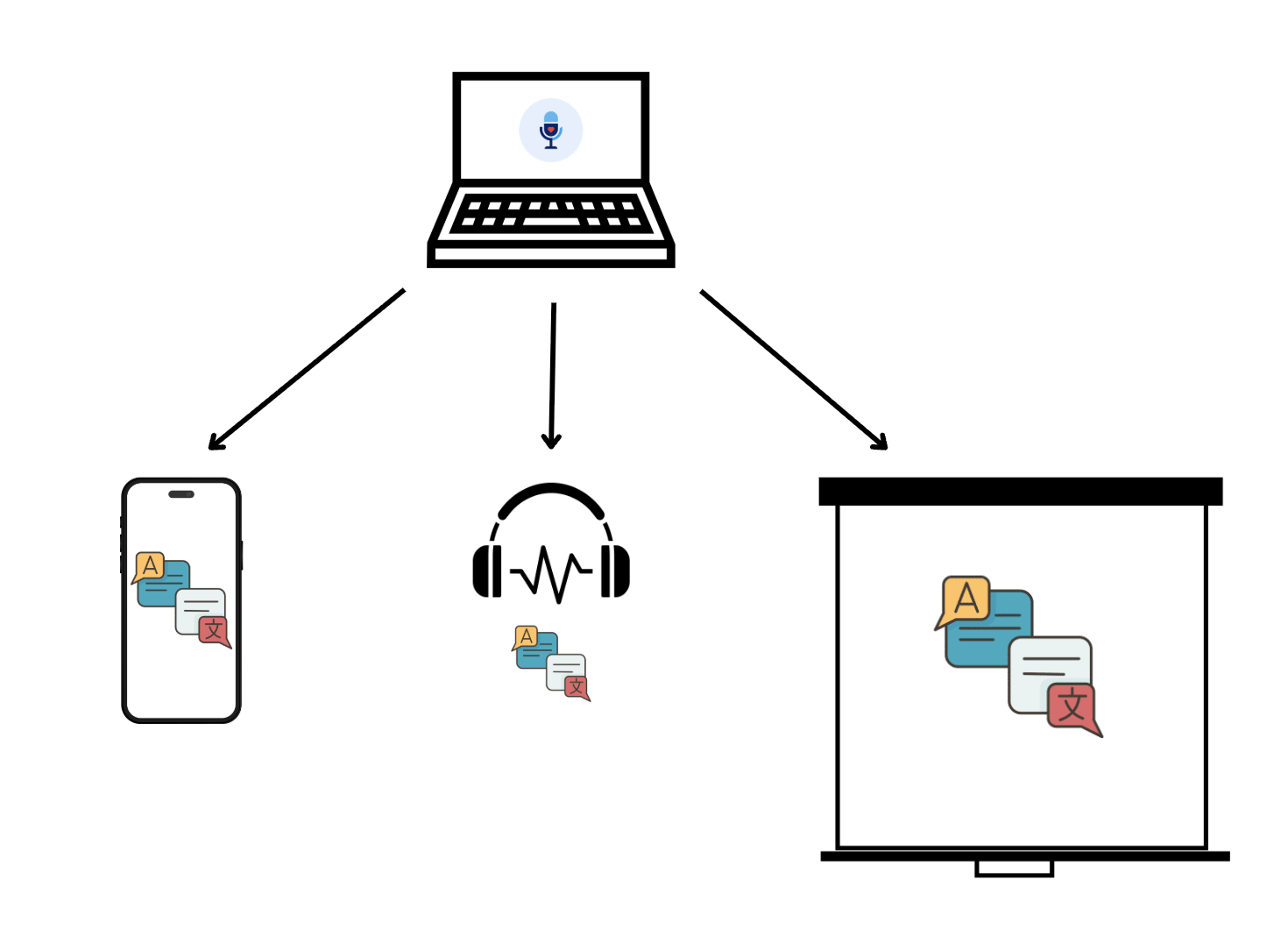
A live translation QR code is the fastest way to get an entire room listening in their own language. The host starts a Hope Translator broadcast, puts a QR code on the screen or a sign, and anyone can scan it with their phone camera, pick a language, and tap Listen. No app download, no account, no pairing.
This guide walks through the full flow, from starting the broadcast to printing the code, adding it to slides or ProPresenter, posting foyer signs, and fixing the few things that occasionally go wrong.
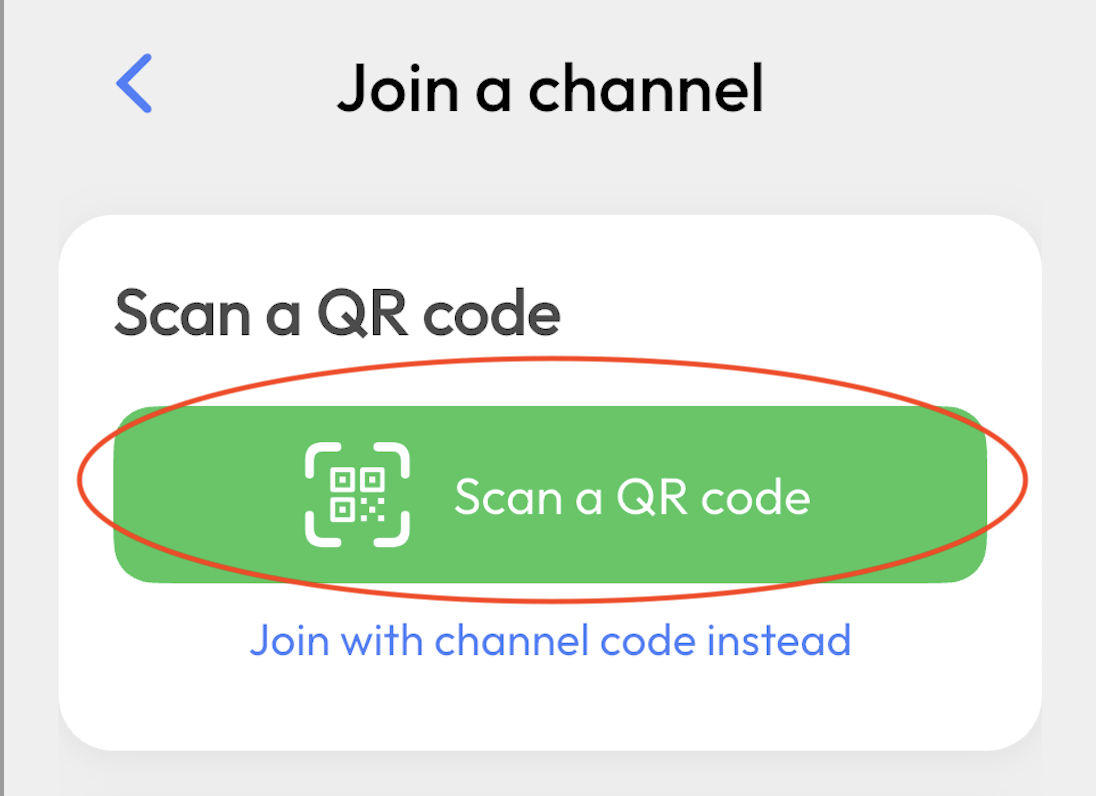
Want to try it right now? Start a demo broadcast at hopetranslator.com: it uses sample audio and gives you a real QR code to scan in under a minute.
How Sharing Translation with a QR Code Works
- Host starts a broadcast on the web or in the mobile app.
- Host shares the QR code (on screen, printed, or sent as a link).
- Audience scans with their phone camera.
- Each person chooses a language and reads the live text or taps Listen for AI voice.
The QR code simply encodes your channel's join link. Because the link and QR code stay the same for a channel, you can prepare everything days ahead and reuse the same code every week.
Step 1: Start Your Broadcast
On the web
- Sign in at hopetranslator.com and open the host page.
- Select your microphone and input language.
- Click Start Broadcasting. The join link and QR code appear immediately, before you start speaking.
- When you're ready, click Start Translation to begin live transcription and translation.
On the mobile app
- Open the Hope Translator app, choose broadcast mode, and start. The app shows the same kind of QR code and link. See How to Broadcast Live from the Mobile App.
For every host-side control in detail, see the Hosting Broadcasts Manual.
Step 2: Show, Download, or Copy the Translation QR Code
Click Share on the host page to open the share dialog. You'll find:
- QR code for your audience to join, with Hide, Small, and Large display options.
- Download QR code, which saves the image for slides, printing, and signage.
- Use this link to join this channel, which copies the plain link for texts, email, websites, and chat.

Tip: Choose Large when the host laptop is connected to a projector or TV so people can scan from their seats. Choose Small or Hide once everyone has joined and you want the screen for the live text or overlay.
Step 3: Audience Scans and Joins
Attendees point their phone camera at the QR code and tap the link that pops up. iPhone and Android cameras both recognize QR codes natively; no separate scanner app is needed.
The link opens the viewer page in their browser. If the broadcast hasn't started yet, they'll see Waiting for host… and connect automatically when you press Start.
People who prefer the app can scan the same QR code from inside the Hope Translator app, which remembers the channel for next time.
Step 4: Choose a Language
Each listener taps the Language button (with flag icons) and selects the language they want. Everyone in the room can pick a different language from the same QR code: Spanish in one row, Korean in the next, Portuguese behind them.
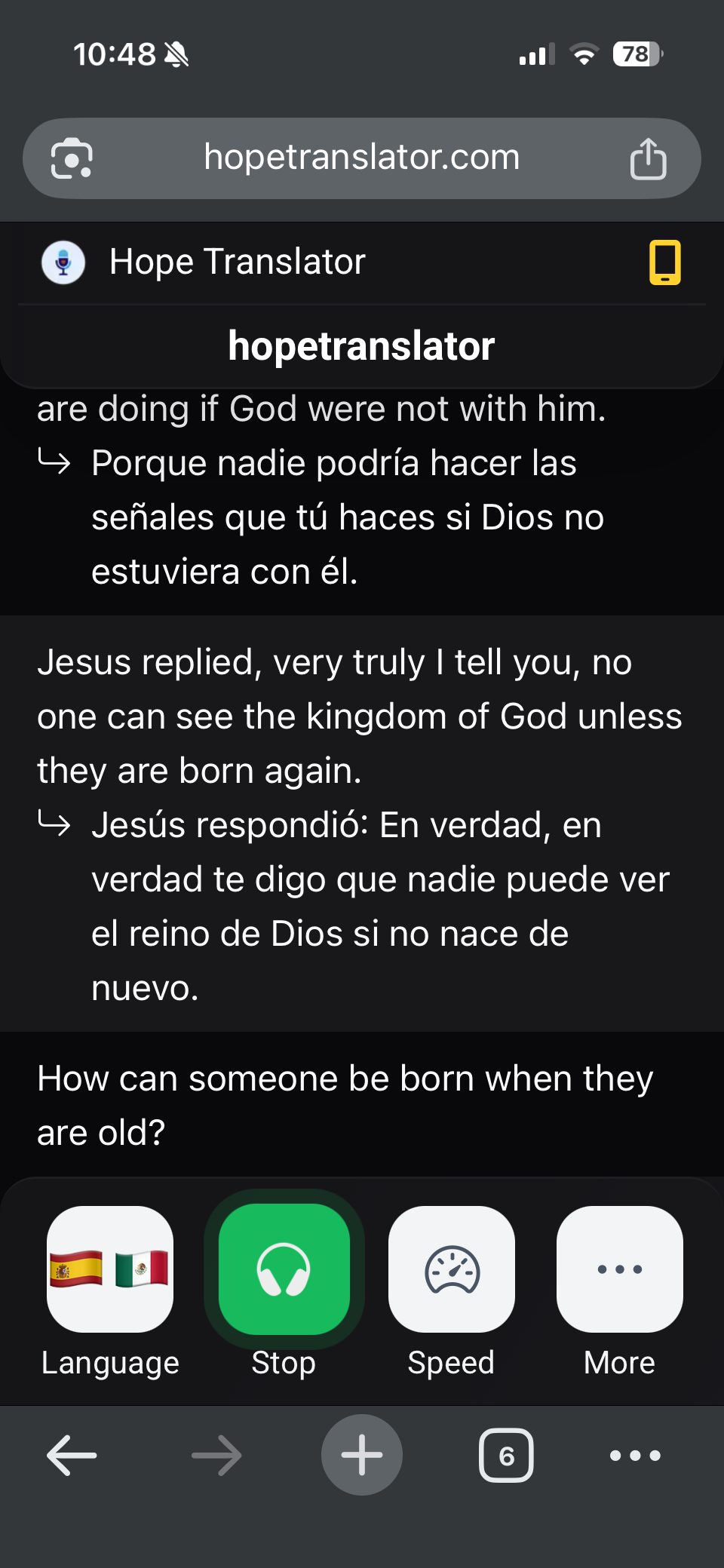
Listeners can also adjust font size, switch to dark mode, and show or hide the original transcription. See How to View and Customize Live Translation.
Step 5: Read or Tap Listen
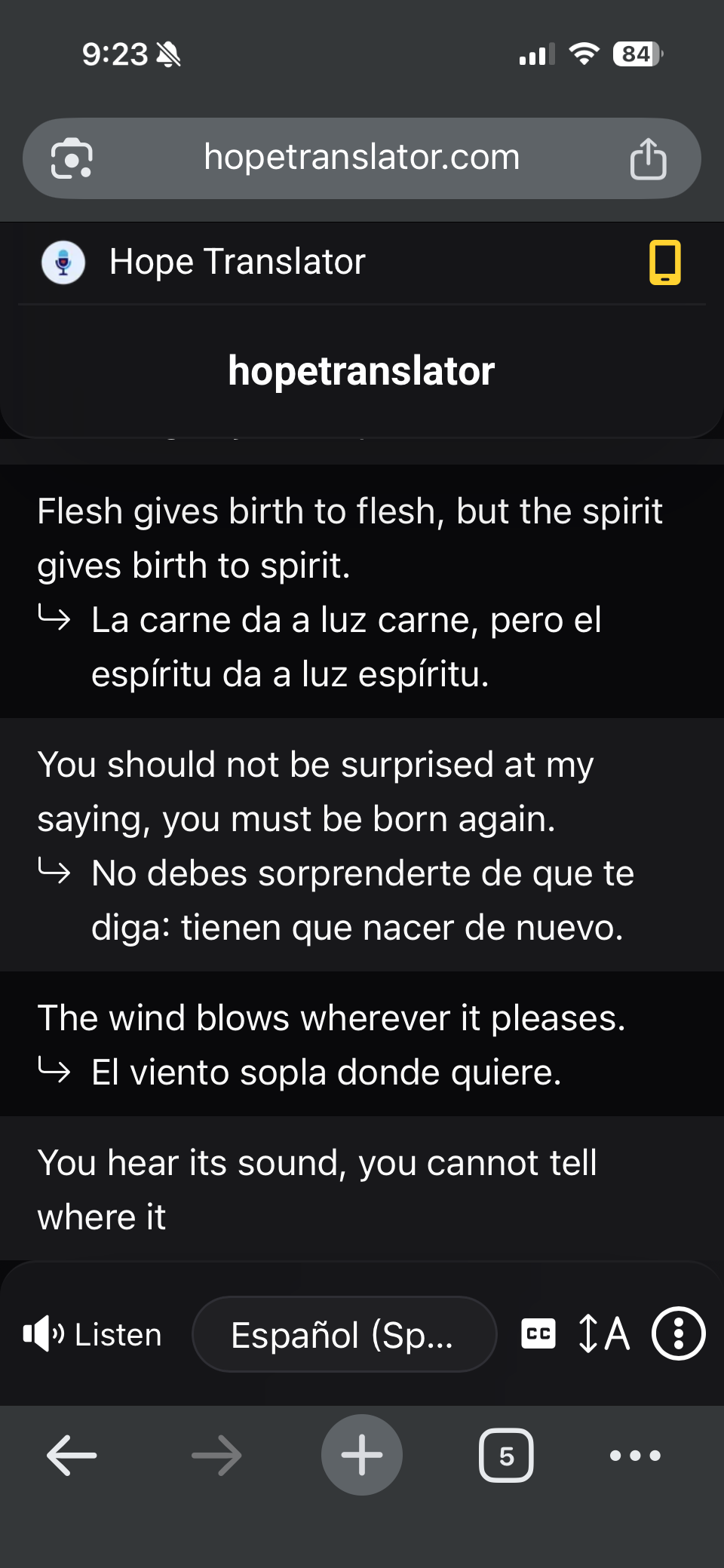
Live translated text appears as the speaker talks. For AI voice, listeners tap Listen and put in earbuds. Voice works on both web and app.
For the complete listener walkthrough to share with your audience, see How to Listen to Live Translation. For what to tell people to wear, see Best Earbuds for Live Event Translation.
Where to Put the Live Translation QR Code
The best setups show the QR code in more than one place. Here's how to handle each.
On your welcome and announcement slides
- Click Download QR code on the host page.
- Drop the image onto your pre-service or pre-session slide with a short line such as "Live translation: scan to listen in your language."
- Leave generous white space around the code and make it at least one-sixth of the slide height so it scans from the back.
- Show the slide for several minutes before the talk begins, and again at any break.
Because the code never changes for the channel, this slide can live permanently in your deck.
In ProPresenter
The QR code is just an image, so add it to a ProPresenter slide the same way you'd add any graphic. Many churches put it on the looping pre-service slide and in a corner of the announcement template.
If you also want the translated text itself on the main screen, Hope Translator's screen overlay works with ProPresenter's Web Fill. That's a separate, powerful setup covered in How to Connect Hope Translator with ProPresenter. A common combination is: QR code on the pre-service slide for people who want voice in their earbuds, plus the text overlay on screen for everyone else. For help deciding, see Presentation Screen vs Personal Devices.
Printed signs and handouts
- Foyer or entrance sign: Print the QR code at least 4 inches (10 cm) wide on a tabletop sign or easel poster. Add the heading in the languages you expect, for example "Traducción en vivo · 실시간 통역 · Tradução ao vivo."
- Seat cards or bulletin inserts: A small card with the QR code and three steps (Scan · Choose language · Tap Listen) works well for every seat or pew.
- Welcome table card: Keep a laminated card next to any loaner headsets so greeters can show visitors exactly what to do. See Best Headsets for Church Translation for the headset side.
- Name badge or lanyard insert: For conferences, print the code on the back of the badge.
Print in high contrast (black on white) and don't stretch or recolor the image. Test every printed version with two or three different phones before the event.
Mobile screen share and small groups
For small groups, classes, and one-on-one situations, you don't need a printer or projector:
- Open the share dialog on the host phone or laptop and simply hold the screen up for others to scan.
- Or tap the link copy option and send the link by text message, WhatsApp, email, or your group chat. A tapped link works exactly like a scanned QR code.
- Listeners can also pass it along. The viewer page includes a Share link with neighbors option so one person who joined can show the QR code to the people around them.
This is especially handy for small group settings and for hosting from a phone in a two-device mobile setup.
Website, event page, and social posts
Paste the join link on your church website, event registration page, or a pinned social post. Visitors can tap it on their phone the moment they arrive, or even join from home if you're also streaming. The link is permanent for the channel, so you only need to post it once.
Troubleshooting QR Code Sharing
The camera doesn't recognize the code
- Move closer and hold still. Most cameras need the code to fill a reasonable portion of the frame.
- Increase size: switch to Large on screen or reprint bigger.
- Check lighting and glare. A code on a glossy sign under a spotlight may not scan; move the sign or print on matte paper.
- Make sure the code wasn't stretched, cropped, or recolored.
The link opens but shows "Waiting for host…"
- That's expected before you press Start. Begin the broadcast and listeners connect automatically.
"Channel not found"
- The channel was removed or the link is from a different channel. Re-download the QR code from the current host page and replace any old printouts.
Listener can't hear anything
- Have them tap Listen and check phone volume and silent switch.
- Earbuds plugged in after tapping Listen may route audio to the speaker; tap Listen again.
- Confirm the host has started translation, not just opened the broadcast.
Text appears but lags or stalls
- Usually the listener's Wi-Fi or mobile data. Suggest switching networks.
- Check the host connection as well; the host's upload matters most.
Only one language appears
- Each viewer picks their own language from the Language button. Nothing needs to be set by the host for individual listeners.
Translation looks wrong or garbled
- Almost always a microphone issue on the host side. See Accurate Transcription and Translation and Best Wireless Microphone Setup for Live Translation.
Checklist: QR Code Sharing Before Your Event
- [ ] Start Broadcasting once and download the QR code (it won't change).
- [ ] Add the code to your pre-service or pre-session slide.
- [ ] Print at least one foyer sign and a stack of seat cards.
- [ ] Test the printed and projected code with two or three phones.
- [ ] Brief greeters: Scan · Choose language · Tap Listen.
- [ ] Set out loaner headsets and a few USB-C/Lightning adapters.
- [ ] Press Start Translation a few minutes before the talk so early scanners see live text.
FAQ
Conclusion
Sharing live translation with a QR code takes one download and a little placement: a slide, a sign, a seat card, or a link in your group chat. The code never changes, attendees need nothing but their phone camera, and each person chooses their own language and taps Listen. Set it up once and every future service or event is ready to go.
Next steps
- Try the flow – How to Start a Demo Broadcast gives you a real QR code to scan with sample audio.
- Learn the host page – Hosting Broadcasts Manual.
- Share the listener guide – How to Listen to Live Translation.
- Put text on the big screen too – Connect Hope Translator with ProPresenter.
- Need help? – FAQ or contact us.
Ready to share live translation with a QR code? Start free at hopetranslator.com or get the app.