How to Connect Hope Translator with ProPresenter
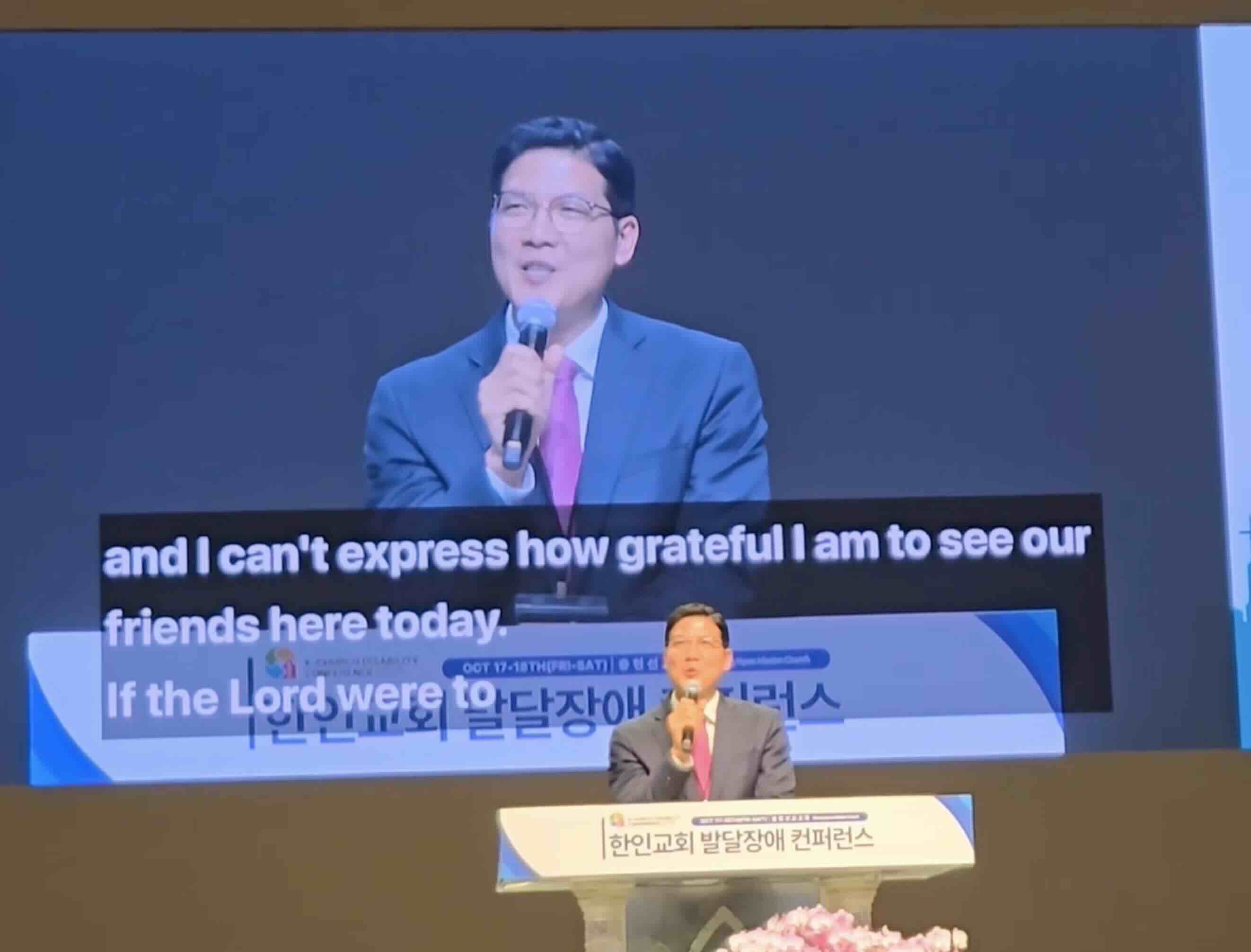
Hope Translator offers powerful screen overlay functionality that seamlessly integrates with ProPresenter, allowing you to display live translation directly on your presentation screen. This creates a unified experience where your audience can see both your content and the translation simultaneously, without needing separate devices.
What is Screen Overlay?
Screen overlay allows you to display live transcription and translation text directly on your ProPresenter presentation screen. This creates a professional, integrated experience where your audience can see both your content and the translation simultaneously, without needing separate devices or displays.
Getting Your Screen Overlay Link from Hope Translator
1. Click 'Add Screen'
- Log into your Hope Translator account
- Navigate to "Presentation and Streaming Software" section
- Click the "Add Screen" button to create a new overlay
2. Enter Your Screen Name
- Give your screen overlay a descriptive name (e.g., "Main Service Translation")
3. Configure Your Display Settings
- Background Color: Choose colors that complement your presentation
- Text Color: Select high-contrast colors for better visibility
- Position: Set where the translation appears on screen
- Opacity: Control transparency to avoid blocking important content
Important: When using the color picker, note that RGB values and the transparency slider work independently. The transparency slider controls the overall opacity of the overlay. If you set RGB values but don't adjust the transparency slider, you may end up with an opaque layer covering your entire slide. Always configure both RGB values and the transparency slider to achieve your desired effect.
4. Save Your Configuration
- Review your settings to ensure optimal display
- Click "Save" to store your screen overlay configuration
5. Pick a Language and Share the Link
- Select the target language for translation
- Copy the generated link for your screen overlay
- Add this link to ProPresenter using the methods below
- The translation will appear as an overlay on your screen
ProPresenter Integration Using Props
ProPresenter Props allow your captions to persist across multiple slides and can be loaded/cleared independently:
Props Configuration
-
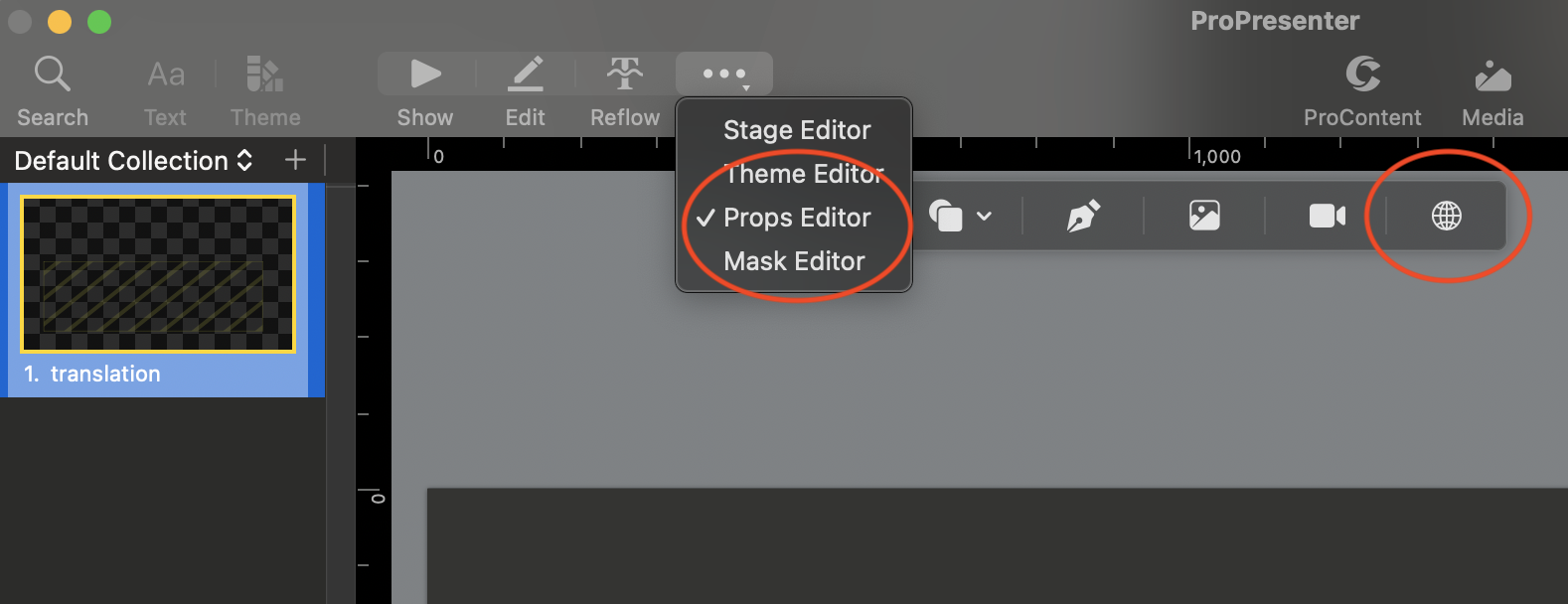
Create a new Prop - In ProPresenter, create a new prop and assign it a label like "Translation"
-
Select "Props Editor" - Choose the Props Editor option
-
Select the glob icon "Insert web object" - Click the globe icon to insert a web object
-
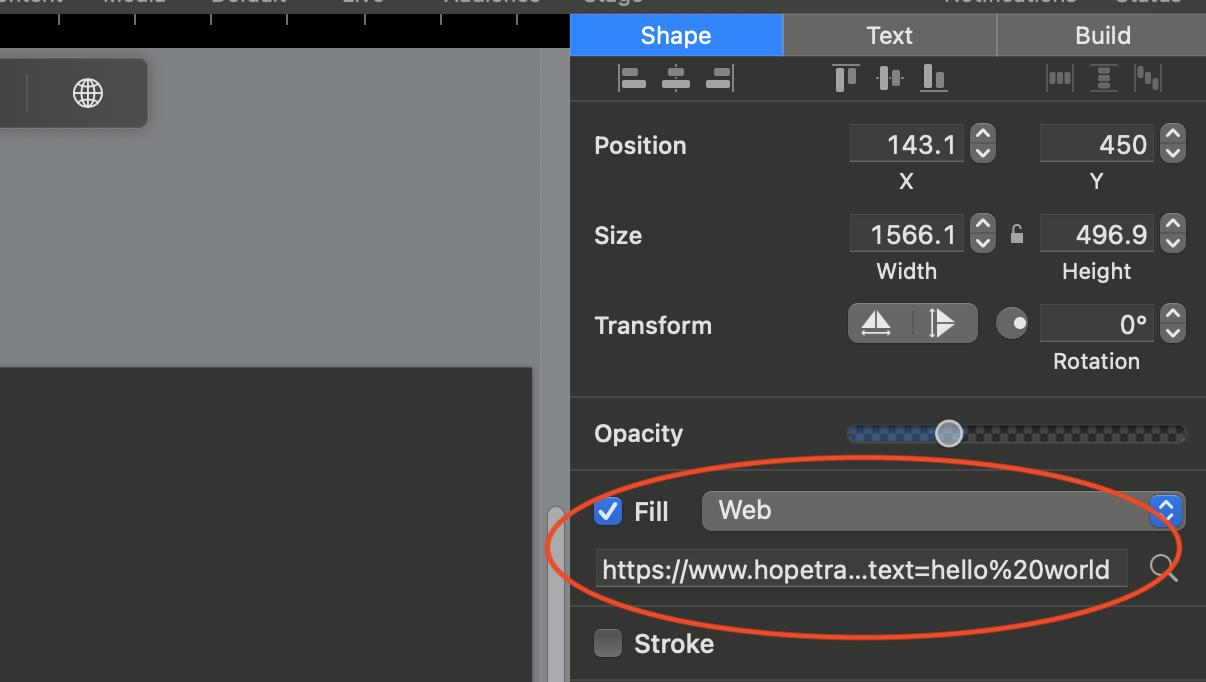
In the Web Fill layer, insert the copied link from Hope Translator into the web text box - Paste the display link in the URL field
-
Append ?text=hello to test - Add
?text=hello(or?text=your test text) to the end of the URL to verify the overlay displays sample text before going live -
Click "Show" and test - Click "Show" to activate and test the translation display
-
Resize the block - CRITICAL: Drag the corners to cover the full size of the slide. The web object box must be full screen for the translation text to display properly. If you place it in a smaller area (like a lower-thirds position), you'll only see the top portion of the web page, which may appear empty and cause confusion.
Visual Tip: When properly configured, the web object should cover the entire slide area. If you're used to working in "lower-thirds" mode, remember that Hope Translator's web overlay needs the full screen to function correctly. The text position is controlled within Hope Translator's settings, not by the size of the web object box in ProPresenter.
-
Paste the URL - In the right sidebar, paste the display link in the URL field
-
Load captions - Click the "Translation" layer to activate it
Note for Lower-Thirds Users: If you prefer to position the translation text in a specific area of your slide (like lower-thirds), you'll need to configure the text position within Hope Translator's settings before copying the link. The web object itself must still cover the full slide area for proper functionality.
Advanced Configuration
Performance Optimization
To achieve the best performance:
- Use Ethernet connection - Connect ProPresenter directly to internet via cable
- Close unnecessary applications - Free up system resources
- Test connection - Verify network stability before the event
- Have a backup plan - Prepare a backup copy of captions
Audio Input Configuration
When capturing audio on macOS:
- System audio limitations - macOS typically exposes only channels 1 and 2 through the "system audio" feed to web browsers
- Audio mixer setup - If your audio mixer provides multiple channels (e.g., 32 channels via USB), configure your mixer to send voice-only audio on channels 1 and 2
- Direct channel selection - macOS does not expose individual mixer channels directly to web browsers, so you'll need to route your desired audio source to the system audio channels
Tip: If you need specific audio channels, configure your audio mixer or interface to route the desired source (e.g., voice-only) to channels 1 and 2, which are what the browser can access through system audio.
Visual Customization
Adjust appearance to match your presentation:
- Brand colors - Use your organization's colors
- Adequate contrast - Ensure text is easy to read
- Appropriate size - Adjust according to viewing distance
Integration with Other Presentation Software
While this guide focuses on ProPresenter, Hope Translator's screen overlay functionality works with many other presentation and streaming platforms:
OBS Studio Integration
- Add Hope Translator as a browser source in OBS
- Layer the translation over your video content
- Use OBS filters to enhance the appearance
- Stream live translation to your audience
During the Presentation
- Monitor constantly - Observe caption quality in real-time
- Maintain stable connection - Verify internet connection remains active
- Have backup controls - Prepare alternative ways to show captions
- Communicate with presenter - Maintain communication about caption status
Common Troubleshooting
Captions Don't Appear
If captions don't show in ProPresenter:
- Verify URL - Confirm the display link is correct by opening the URL in a browser and test
- Append ?text=hello - Add "?text=your test text" to the end of the URL to test with sample text
- Check connection - Ensure ProPresenter has internet access
- Review Web Fill configuration - Verify the block is properly configured
- Test in browser - Open the URL directly to confirm it works
Caption Delay
When there's delay between audio and captions:
- Optimize connection - Use a faster internet connection
- Reduce latency - Close applications consuming bandwidth
- Adjust settings - Verify real-time processing settings
- Consider dedicated hardware - Use a specific device for captions
Display Issues
If captions don't display correctly:
- Verify full-screen web object - Ensure the web object covers the entire slide area. If it's too small, you'll only see the top portion of the page
- Adjust block size - Resize the Web Fill area to cover the full slide
- Verify resolution - Ensure resolution is appropriate
- Check colors and transparency - Confirm there's sufficient contrast and that both RGB values and transparency slider are properly configured
- Test different browsers - Some may render better than others
Web Object Text Freezing
If the web object text freezes while translations continue to appear in the Hope Translator app:
- Check ProPresenter status - Verify ProPresenter is still running and responsive
- Reload the web object - Try hiding and showing the Prop again, or reload the web object
- Verify network connection - Check that the ProPresenter machine maintains stable internet connectivity
- Check system resources - Ensure sufficient CPU and memory are available
- Restart the Prop - If the issue persists, unload and reload the Prop
Note: If translations continue working in the app but freeze in ProPresenter, this typically indicates a ProPresenter web object issue rather than a Hope Translator feed problem. Document when this occurs and any patterns (e.g., after specific actions, duration of use) to help troubleshoot.
Initial Text Delay
When first activating the translation overlay, there may be a brief delay before text appears. This is normal as the system establishes the connection and begins processing audio. To minimize this delay:
- Load the Prop early - Activate the translation overlay before you need it
- Avoid re-triggering - Once activated, avoid repeatedly showing/hiding the Prop unnecessarily
- Test beforehand - Verify the connection is working during your setup phase
Need Technical Help?
If you need assistance setting up ProPresenter integration:
- Contact technical support - Our team can help with specific configurations
- Schedule a consultation - Book a session with our integration specialists
- Request a demonstration - See the integration in action before implementing
Getting Started
Ready to integrate Hope Translator with your ProPresenter setup? Start with our free trial to test the screen overlay functionality in your environment. Our team is here to help you set up the perfect translation solution for your specific needs.
For technical support or custom integration assistance, contact our support team or visit our FAQ page for additional guidance.
Summary
Hope Translator integration with ProPresenter creates truly inclusive presentations. By configuring appropriate displays, using Props for persistence, and following best configuration practices, you can offer real-time translations that significantly enhance your audience's experience.
The screen overlay functionality transforms your existing ProPresenter setup into a powerful multilingual communication tool, making your content accessible to diverse audiences without requiring additional hardware or complex technical expertise.
Ready to make your presentations more accessible? Visit hopetranslator.com to get started with professional real-time subtitle and translation integration.