How to Connect Hope Translator with Zoom
Hope Translator works alongside Zoom so you can offer real-time translation to everyone in your meeting. Route Zoom’s audio into Hope Translator using a virtual audio device, then share the broadcast link or QR code with your audience. Attendees open the link to listen or read the translation in their preferred language—no extra software on their side.

How It Works
Hope Translator is not a Zoom add-on and does not use Zoom Language Interpretation.
Zoom meeting audio → virtual audio device (Loopback on Mac, VB-CABLE on Windows) → Hope Translator → broadcast link
- You host Zoom as usual on the desktop app.
- Hope Translator listens to the same meeting audio through the virtual device.
- Attendees stay in Zoom for video and open a Hope Translator link on their phone or a second tab to listen or read.
Why Use Hope Translator with Zoom?
- Real-time translation of what’s said in the meeting
- Multiple languages so each participant can choose their language
- Works with Zoom as-is; no Zoom add-ons or Language Interpretation required
- Simple for attendees—they only open a link or scan a QR code to listen or read
What You Need
- A Hope Translator account (web app)
- Zoom desktop app (routing is much harder in the browser or on iPad)
- A virtual audio setup so Zoom’s output is sent to Hope Translator
- Mac: Loopback as the virtual audio device
- Windows: VB-CABLE as the virtual audio device
- Stable internet connection
- Headphones for anyone who will listen to the translation while Zoom is still playing
Route Zoom Audio into Hope Translator
For the best results, feed Zoom’s meeting audio into Hope Translator using a virtual audio device. That way Hope Translator receives the same audio you hear in Zoom and can transcribe and translate it accurately.
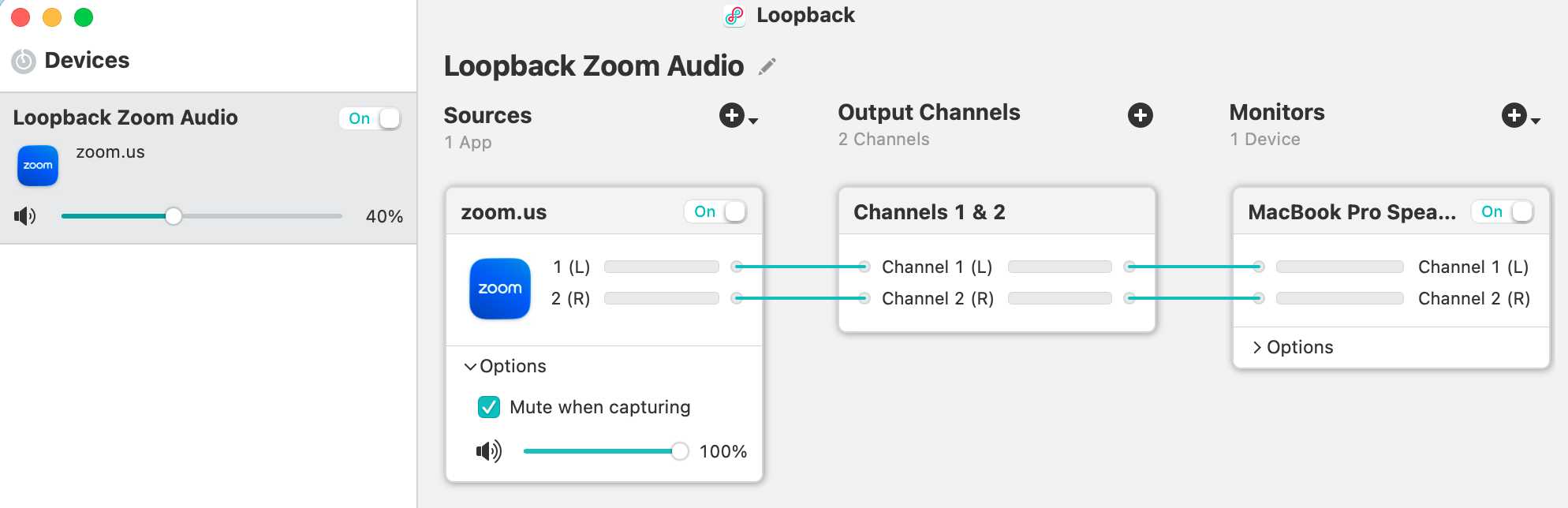
Mac users need Loopback. Our guide Live Translation and Loopback Audio Routing explains what Loopback is and how to set it up. Windows users need VB-CABLE — follow Use Zoom Audio as Hope Translator Input on Windows (VB-CABLE) for the full Windows setup. In short:
- Create the virtual device with Loopback on Mac or VB-CABLE on Windows.
- In Zoom (desktop app), open audio settings and set the speaker / output to that virtual device (Loopback, or CABLE Input on Windows).
- In Hope Translator, open microphone or audio settings and select the matching virtual input (the Loopback device, or CABLE Output on Windows). Hope Translator will now receive the Zoom meeting audio.
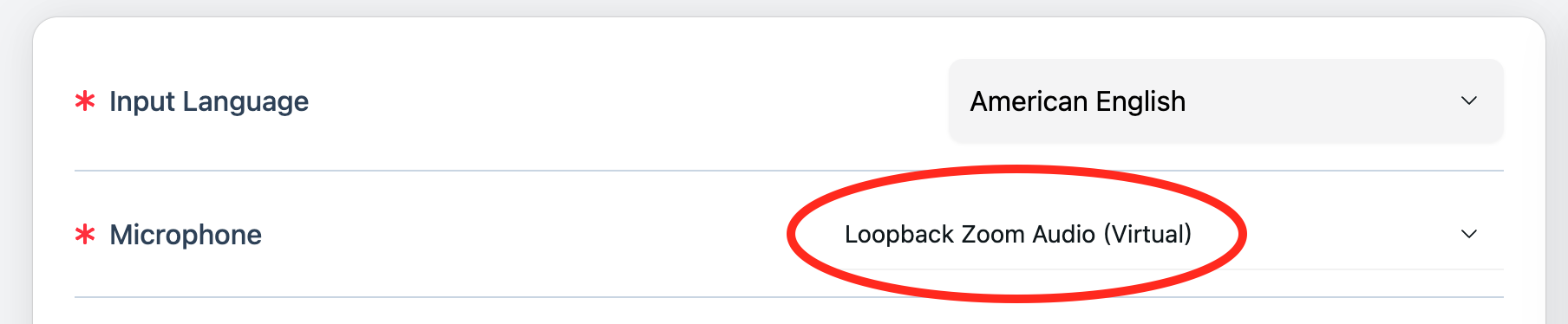
Zoom settings that help translation
- Use the Zoom desktop app, not Zoom in a browser.
- Set Zoom’s speaker to Loopback (Mac) or CABLE Input (Windows).
- Turn Original Sound on when you want a cleaner, less-processed speech feed.
- Set Zoom’s background-noise suppression to Low or Off so speech is not over-filtered.
- Ask people to speak one at a time. Overlapping talk is the usual accuracy drop.
You may not hear Zoom after routing
Once Zoom’s speaker is the virtual device, your computer speakers often go silent. That is expected. Enable monitoring in Loopback on Mac, or use the “Listen to this device” steps in the VB-CABLE guide, so you can still hear the meeting.
Once this is set up, start your Hope Translator session and begin your Zoom meeting. Hope Translator will transcribe and translate the meeting audio in real time.
Sharing Translations with Your Audience
Your audience gets the translation via the broadcast link or QR code from Hope Translator—not through Zoom.
- Start a broadcast in Hope Translator (create or open a channel and start translating).
- Share the link or QR code with attendees (e.g. in Zoom chat, by email, or by showing the QR on screen).
- Attendees stay in Zoom for video and open the link (or scan the QR code) on their phone or a second browser tab.
- They choose their language and can listen or read the translation in real time.
- If they listen, they should use headphones so Zoom’s original audio and the translated voice do not play over each other.
No one needs to install anything; the link works in a browser. Screen-sharing the Hope Translator window in Zoom is a fallback if someone cannot open a second device. The link or QR code is the intended path. For more on hosting and joining, see How to Listen to Live Translation.
Before the Meeting
- Join a short Zoom test meeting with audio playing.
- Confirm Zoom’s speaker is the virtual device (Loopback or CABLE Input).
- Confirm the Hope Translator input meter moves.
- Open the listener link on a phone and check listen or read.
- At the start of the real meeting, paste the link in Zoom chat.
Hybrid Meetings (Room + Zoom)
If you have an in-room speaker and remote Zoom participants, feed Hope Translator from Zoom’s output so remote speakers are included. Do not also point a room microphone at the same loudspeakers—you will capture the room (or the translation) twice.
For a church or venue mixer, send a speech-only (mix-minus) feed. See How to Connect Hope Translator to a Sound Mixer.
Limits
- Breakout rooms: One Hope Translator session follows one Zoom audio source. Each room that needs translation needs its own session.
- Webinars: Hope Translator hears panelist audio from the host machine, not every attendee.
- Zoom in a browser or hosting from iPad: Virtual-audio routing is much harder. Use Zoom desktop on a Mac or Windows computer.
- Zoom Language Interpretation: You do not need it. Hope Translator is a separate listen/read experience.
Best Practices
- Route Zoom through a virtual device so Hope Translator gets a clean feed of the meeting.
- Use the Zoom desktop app and set its speaker to Loopback or CABLE Input.
- Test before the meeting using the checklist above.
- Share the link in Zoom chat at the start and remind listeners to use headphones.
- One speaker at a time, with a quiet environment and a good mic on the Zoom side.
Troubleshooting
- No audio in Hope Translator – Confirm the virtual device is selected as the microphone in Hope Translator and that Zoom’s speaker is set to that same path (Loopback, or CABLE Input → CABLE Output on Windows). Restart the Hope Translator session if you changed the input.
- I can’t hear Zoom anymore – Enable monitoring in Loopback or follow the “Listen to this device” steps in the VB-CABLE guide.
- Echo or double audio – Listeners should use headphones. Do not play the translation on speakers that Zoom can hear.
- Translation is delayed – Check your internet connection and close other heavy apps. Routing and translation both need a stable connection.
- Attendees can’t see or hear the translation – Make sure they opened the correct link or scanned the QR code and chose a language. Remind them to allow audio if they want to listen.
- Breakout rooms have no translation – Start a separate Hope Translator session for the Zoom window or host that has that room’s audio.
Next Steps
- Mac users – Read Live Translation and Loopback Audio Routing to set up Loopback.
- Windows users – Follow Use Zoom Audio as Hope Translator Input on Windows (VB-CABLE) to install VB-CABLE and route Zoom into Hope Translator.
- Share with your audience – Follow How to Listen to Live Translation to configure the broadcast and share the link or QR code.
- New to Hope Translator? – See How to Get Started with Live Translator for audio setup options.
Conclusion
You can use Hope Translator with Zoom by routing Zoom’s audio through a virtual device into Hope Translator, then sharing the broadcast link or QR code. Attendees stay in Zoom for video and open the link on a phone or second tab to listen or read in their preferred language. Set up the virtual device once, share the link, and your meeting is ready for real-time translation.
Ready to add live translation to your Zoom meetings?
- Try it free: Visit hopetranslator.com to get started (no credit card required)
- Need help? Check our FAQ or contact us for assistance
Have questions about connecting Hope Translator with Zoom? Our team is here to help you get the best audio and translation setup for your meetings.