Live Translation and Screen Sharing: A Complete Guide
Sharing your screen during live translation can significantly enhance the experience for your audience. This guide explains when and how to effectively share translations with your viewers.
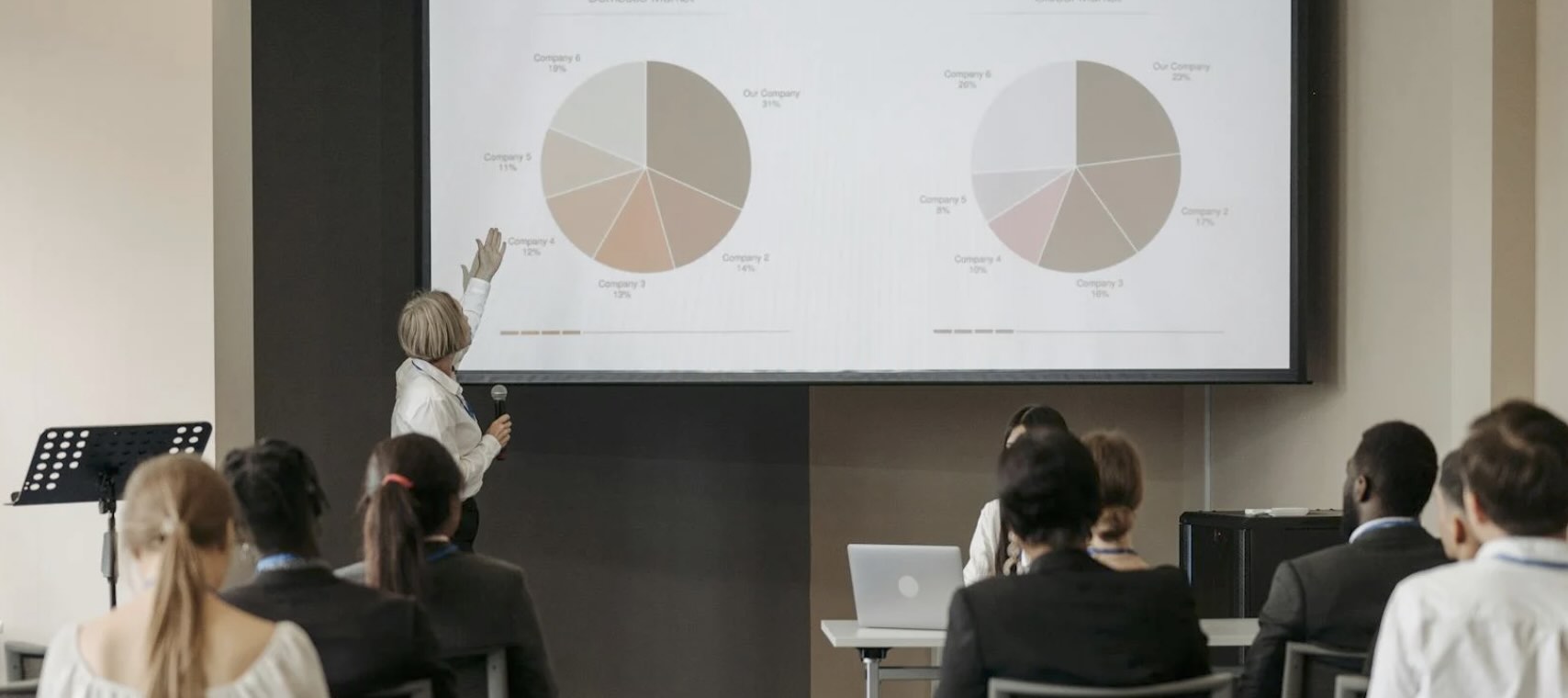
When Screen Sharing is Helpful
Screen sharing your translations can be valuable in various scenarios:
- Noisy Environments: When background noise makes it difficult for people to hear clearly, having captions or transcriptions on screen helps everyone follow along
- Large Venues: In auditoriums or conference halls where some audience members might be far from the speaker
- Mixed Language Groups: When you have attendees who speak different languages
- Technical Presentations: During detailed technical discussions where precise terminology is crucial
- Educational Settings: In classrooms or training sessions where participants need to follow along with the content
Choosing Between Screen Sharing and QR Codes
When to Share Your Screen
- For single-language translation needs
- When you want to ensure everyone sees the same translation
- In controlled environments where you can manage the display
When to Use QR Codes Instead
- When multiple languages are needed simultaneously
- In situations where audience members prefer to use their own devices
- For larger groups where screen sharing might not be practical
How to Share Your Screen
There are three main ways to share live translations on screen, each suited for different scenarios:
Option 1: Browser Viewer Page (Simple Screen Sharing)
Best for: Quick setup, small to medium groups, single-language events
How it works: Share the live translation viewer page directly in your browser.
Setup steps:
- Start a broadcast session in Hope Translator
- Click the "Share" button to get the viewer link
- Open the viewer link in a new browser tab
- Share that specific browser tab with your audience using your screen sharing tool
Pros:
- Quick and easy setup
- No additional configuration needed
- Works with any screen sharing software
Cons:
- Limited customization options
- Includes Hope Translator branding
Option 2: Screen Overlay Page (Customized Display)
Best for: Professional presentations, branded events, large venues
How it works: Create a customized overlay that displays only the translation text with your preferred styling.
Setup steps:
- In the presentation section, click "Add Screen"
- Customize the display settings:
- Background: Black background for better contrast
- Text Color: White text for maximum readability
- Font Size: 40px or larger for distant viewing
- Lines: Set to 5 lines to show more context
- Position: Choose where text appears on screen
- Save your configuration
- Copy the share URL and open it in a new browser
- Share this browser tab for a clean, professional look
Pros:
- Fully customizable appearance
- Clean, professional look
- No branding distractions
- Optimized for large screens
Cons:
- Requires initial setup
- Less flexibility during live events
Option 3: Presentation Software Integration
Best for: Professional events, church services, live streaming, multi-screen setups
How it works: Integrate Hope Translator directly into your existing presentation software like ProPresenter, OBS Studio, or other streaming tools.
Popular integrations:
- ProPresenter: Add as web source for church services and events
- OBS Studio: Use as browser source for live streaming
- PowerPoint/Keynote: Embed via web view for presentations
- Custom solutions: Works with any software supporting web content
Benefits:
- Seamless integration with existing workflow
- Professional control over when translation appears
- Works with multiple screens and outputs
- Maintains your organization's visual identity
For detailed integration instructions with ProPresenter, OBS, and other presentation software, see our Presentation and Streaming Software Integration guide.
Optimizing the Display
To ensure the best viewing experience:
- Click the settings icon
- Adjust the following options:
- Increase font size for better readability
- Switch to dark mode for reduced eye strain
- Hide the header for a cleaner look
- Adjust the layout to maximize the translation area
Important Tips for Success
Before Your Event
- Test the screen sharing setup in advance
- Verify that the translation is clearly visible
- Check that the audio input is working properly
- Practice switching between different display modes
Sound Quality Matters
Remember that accurate translation depends on clear audio input:
- Use a good quality microphone
- Minimize background noise
- Position the microphone close to the speaker
- Test the audio levels before starting
Need Help?
If you need assistance with screen sharing or have specific requirements for your event:
- Contact our support team
- Request a feature that would help your use case
- Schedule a quick demo to test your setup
Ready to enhance your next event with live translation? Visit hopetranslator.com to get started!