How to View and Customize Live Translation
When you scan a QR code to join a live translation broadcast, Hope Translator provides a powerful viewer interface that lets you customize your experience to match your preferences. Whether you want larger text for better readability, prefer to hide the original transcription, or listen to the translated text, you have full control over how you consume live translations.
First, start a broadcast to share live transcription and translation with others in real time.
Joining a Broadcast
To view live translations, you need to join an active broadcast:
- Scan the QR code: Use your mobile device's camera to scan the QR code displayed by the broadcaster
- Or use the link: Click the shared link if you received it directly
- Select your language: Choose your preferred output language from the language selector
- Start viewing: The translation will appear in real-time as the speaker talks
Once connected, you'll see the live translation displayed on your screen, updating in real-time as the speaker continues.
Customizing Your View
The viewer interface offers several customization options to enhance your reading experience:
Adjust Font Size
Make the text easier to read by adjusting the font size:
- Open font size control: Tap the "Font Size" button in the footer (or select "Adjust Font Size" from the "More" menu)
- Adjust the slider: Move the slider to increase or decrease the text size
- See it update: The translation text updates immediately as you adjust the slider
The font size setting is saved automatically, so your preference will be remembered for future broadcasts.
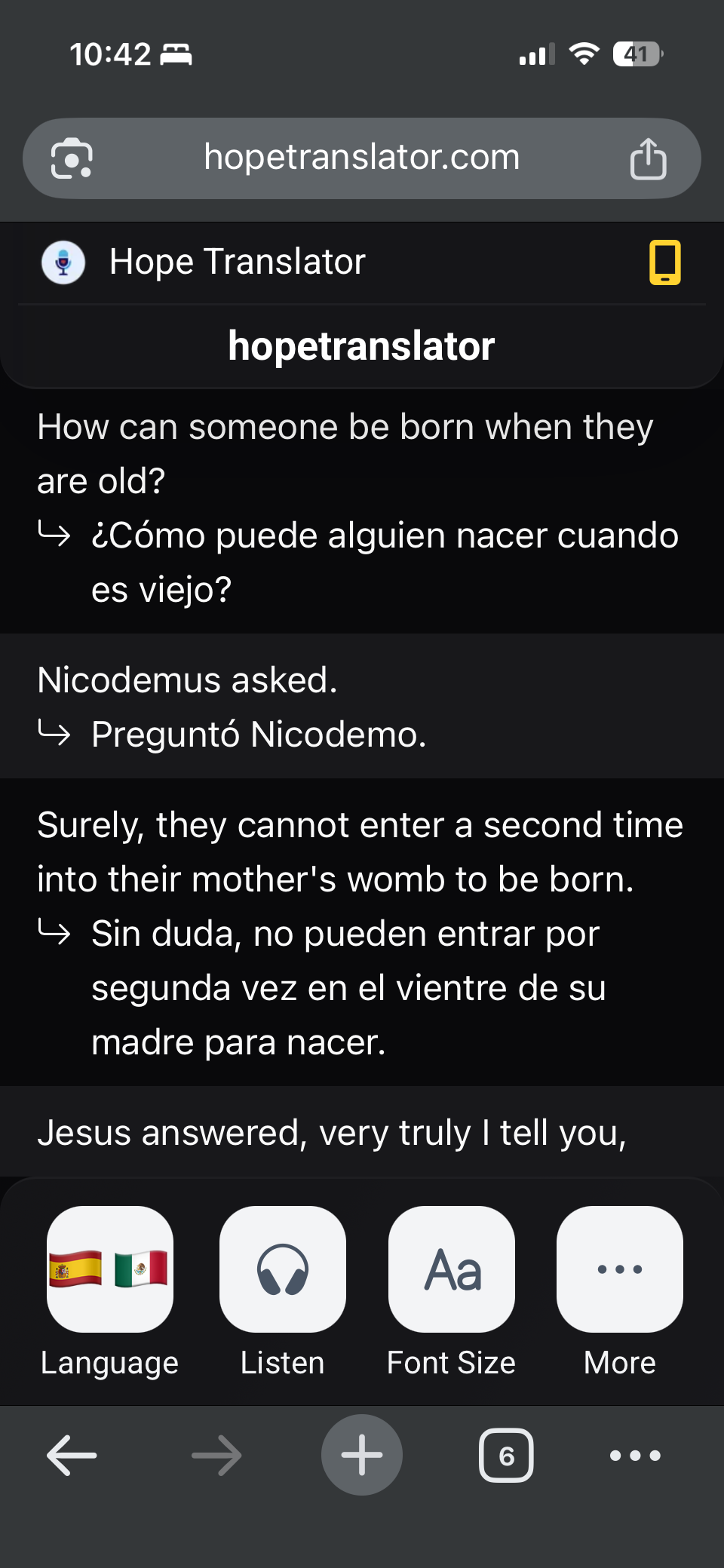
Hide or Show Transcription
You can choose whether to see the original transcription alongside the translation:
- Open the menu: Tap the "More" button (three dots) in the footer
- Toggle transcription: Select "Hide Transcription" to hide the original text, or "Show Transcription" to display it again
Hiding the transcription gives you a cleaner view focused solely on the translated text, which can be helpful when you want to focus on understanding the translation without the distraction of the original language.
Dark Mode and Light Mode
Switch between dark and light themes to match your viewing environment:
- Open the menu: Tap the "More" button in the footer
- Toggle theme: Select "Dark Mode" or "Light Mode" based on your preference
Dark mode is ideal for low-light environments and reduces eye strain during longer viewing sessions, while light mode works well in bright settings.
Auto-Hide Header
Keep your screen uncluttered by automatically hiding the header:
- Open the menu: Tap the "More" button in the footer
- Enable auto-hide: Select "Auto Hide Header" to automatically hide the header when not in use
When enabled, the header will automatically hide after a few seconds, giving you more screen space for the translation text. It will reappear when you tap the screen or interact with the interface.
Listening to Translations
In addition to reading translations, you can also listen to them:
- Tap the Listen button: Click the "Listen" button in the footer
- Hear the translation: The translated text will be read aloud using high-quality text-to-speech
Additional Features
The "More" menu provides additional customization options:
Share the Broadcast
Invite others to join the same broadcast:
- Open the menu: Tap the "More" button
- Share link: Select "Share link with neighbors"
- Share the QR code: A modal will appear with a QR code that others can scan to join
Transcription Quality Score
For advanced users, you can view the transcription quality score:
- Open the menu: Tap the "More" button
- Toggle quality score: Select "Show Transcription Quality Score" to display quality metrics
This feature is useful for understanding the accuracy of the transcription and can help troubleshoot any issues with translation quality.
Best Practices for Viewing
- Choose the right language: Select your preferred output language before the broadcast starts for the best experience
- Adjust font size early: Set your preferred font size at the beginning so you can comfortably read throughout the session
- Use dark mode in low light: Switch to dark mode if you're viewing in a dimly lit environment
- Enable auto-hide header: For longer viewing sessions, enable auto-hide header to maximize screen space
- Combine reading and listening: Use the Listen feature alongside reading for better comprehension, especially in noisy environments
Troubleshooting
Text Not Appearing
- Ensure you've selected an output language from the language selector
- Check that the broadcaster has started the broadcast
- Refresh the page if translations aren't updating
Font Size Not Saving
- Font size preferences are saved in your browser's local storage
- If settings aren't persisting, check that your browser allows local storage
- Try clearing your browser cache and setting preferences again
Audio Not Playing
- Check that you've tapped the "Listen" button to enable audio playback
- Verify your device's volume is turned up
- Ensure your browser allows audio playback (some browsers require user interaction first)
- Try refreshing the browser
Connection Issues
- Check your internet connection
- Ensure the QR code was scanned correctly
- Try refreshing the page or scanning the QR code again
Ready to Get Started?
Experience personalized live translation viewing today! Whether you're reading translations, listening to them, or customizing your view, Hope Translator makes it easy to consume live translations in a way that works best for you. Join a broadcast now or start your own broadcast to share with others.